
Agents
Modes & approvals
Decide what an agent may do in a chat, when it stops to ask, and how you answer its approvals, questions and plans.
Two settings decide how much an agent does on its own. The mode says what it may do at all: answer, plan, or change your project. In Full access, the approval level says which actions still stop for you.
When an agent does stop, the request stays in front of you until you answer it, in the chat, in a notification, or on your phone.
Modes
| Mode | In the access menu |
|---|---|
| Ask | Answer questions without editing files |
| Plan | Propose a plan before changing anything |
| Full access | Edit files and run commands in this project |
Change a chat’s mode in any of these ways:
- Click the access chip at the left of the composer’s foot. Its menu asks “What can the agent do?”.
- Press ⇧Tab in the composer to step through Ask, Plan and Full access.
- Type
/ask,/planor/agent.
The chip reads Full access in orange while the agent can change your project. New chats start in Settings ▸ Agent & composer ▸ Default mode, which is Full access unless you change it.
Ask and Plan are read-only for every provider, unless Claude’s Bypass permissions is on (see the warning below). With an older Cursor CLI, which has no read-only mode Codz can turn on, Codz tells Cursor to stay read-only instead. Full access is unavailable in a chat that works in another chat’s isolated worktree, such as a side chat opened beside it.
Approval levels
Once a chat has started, the access menu in Full access also lists Action approval, with the levels the chat’s provider can honour:
| Level | What it means |
|---|---|
| Reviewed | Ask before every edit and command |
| Accept edits | Edit files without asking; commands still ask |
| Auto | A classifier reviews each action instead of you. Claude Code only |
| Full auto | Never ask: approve every edit and command |
New chats follow Settings ▸ Agent & composer ▸ Default approvals, which is Accept edits unless you change it. A chat that hasn’t picked a level of its own follows that setting, even after it has started; a level you pick in a chat stays with the chat. Where a provider can’t honour the default, the chat runs at Accept edits, or at Reviewed where Accept edits isn’t offered.
The first time you choose Auto, Codz asks you to confirm. In Auto, Claude runs edits and commands without asking you, a separate safety classifier reviews each action and blocks what goes beyond your request, and anything the classifier refuses still comes to you.
For Codex, Reviewed asks before any command its sandbox doesn’t already trust, and Accept edits lets it work inside its workspace sandbox and ask only to go beyond it.
Full auto applies only in Full access. Questions and Cursor’s plans still wait for you at every level.
Approve or deny an action
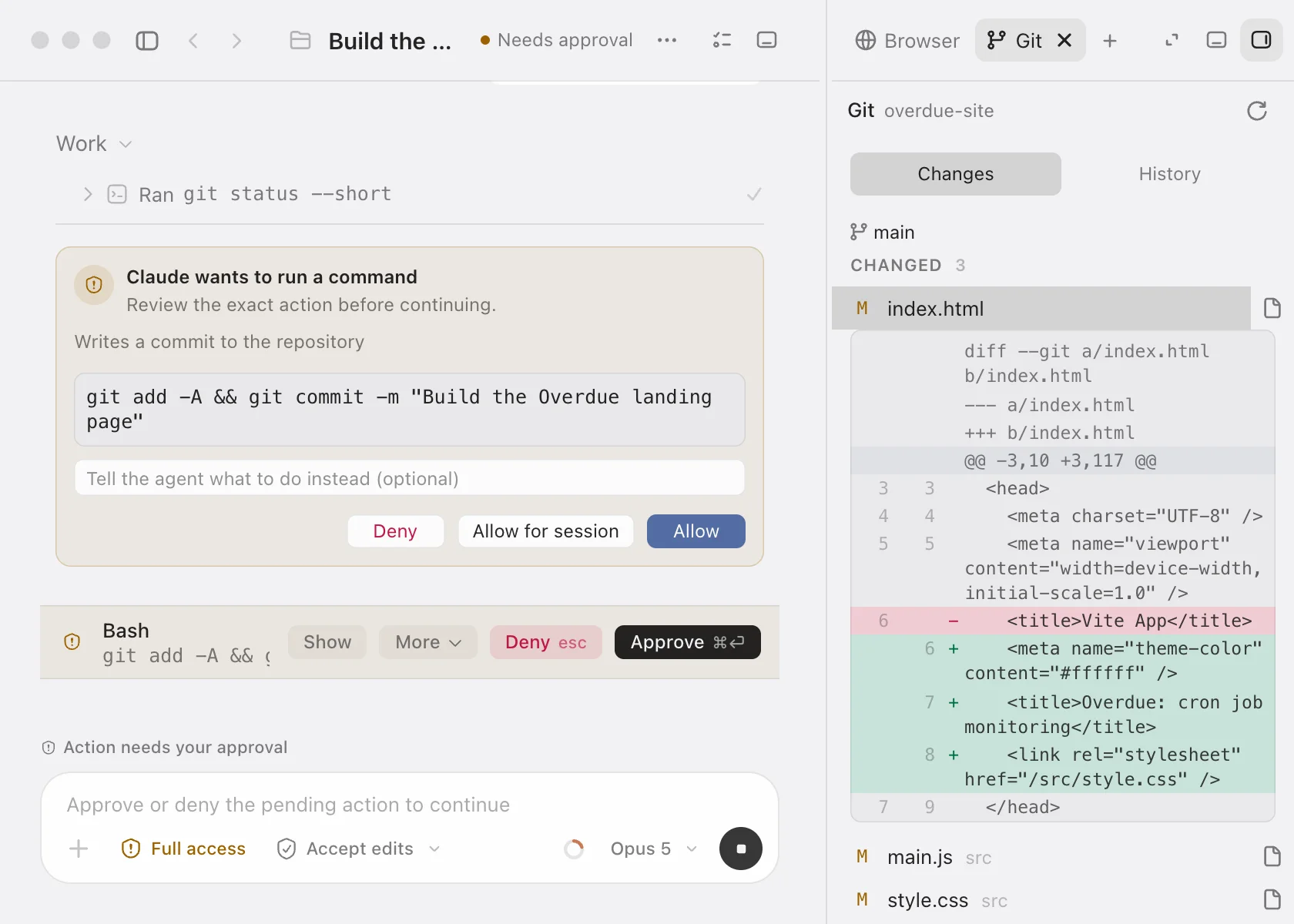
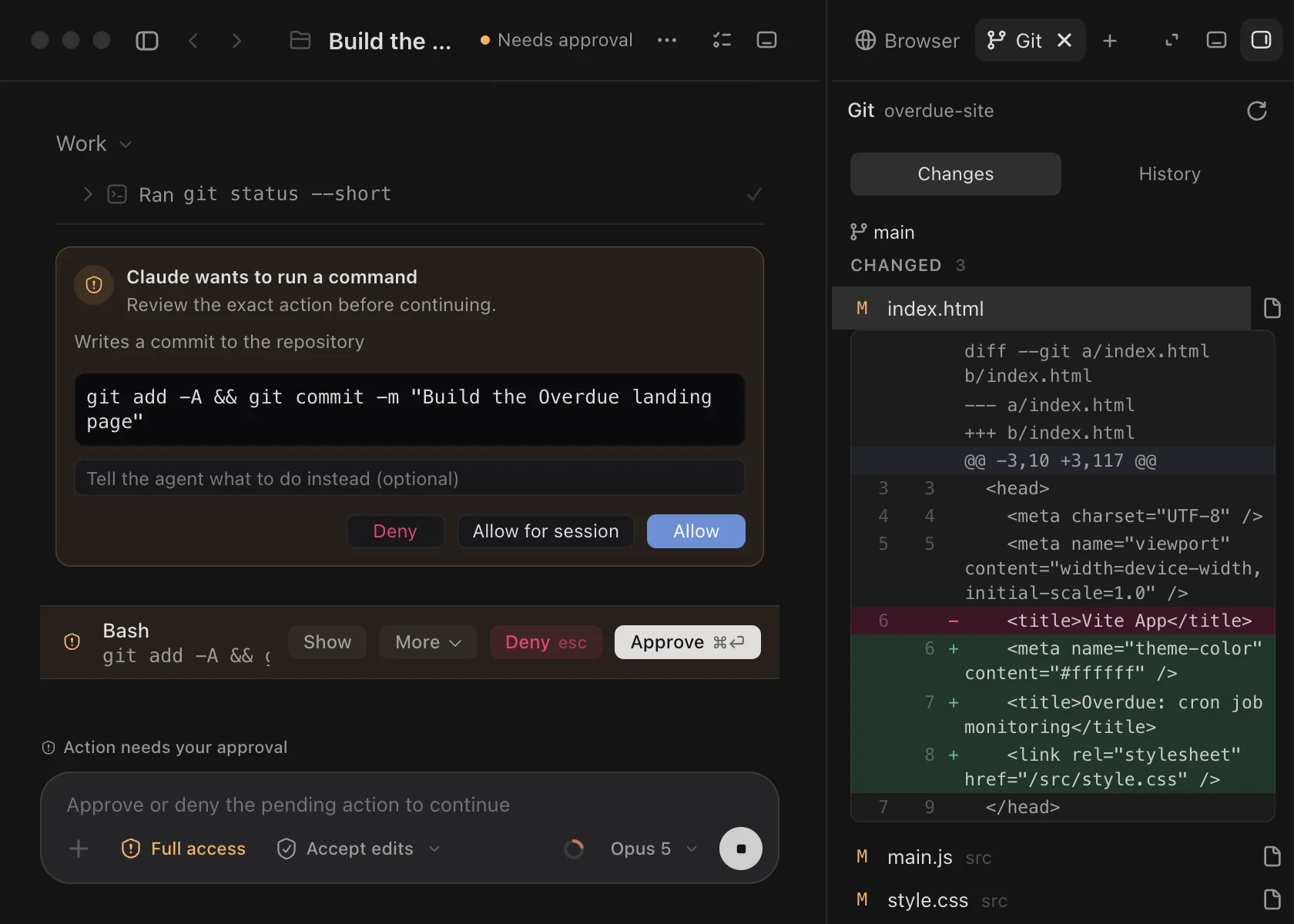
A request shows twice. In the transcript, a card says what the agent wants, such as “Claude wants to run a command”, and stays there as a record. Above the composer, a bar repeats it so it can’t scroll away, and the composer won’t send until you answer (“Approve or deny the pending action to continue”).
The card shows the exact command, or for an edit, the diff it would make before anything is written. Under the title is the provider’s reason for asking, when it gives one, and any path outside the working folder. Then choose:
- Allow: this action, once.
- Allow for session: allow this for the rest of the session.
- Always allow and a rule: saves the rule the provider suggested, so matching actions no longer ask. It appears only when the provider suggests a rule; Codz never writes one of its own.
- Deny, optionally with a note in “Tell the agent what to do instead (optional)”. Pressing ↩ in the note denies with it.
The bar has Show, which scrolls to the card, More for the session and rule options, Deny and Approve. When several requests wait, it counts them and Next moves to the next one.
With the cursor in the composer, ⌘↩ approves and Esc denies. You can also type an explanation and press ↩ to deny with it. Chat ▸ Approve Action and Chat ▸ Deny Action do the same, and have no shortcut of their own. Once you answer, the card reads “Action approved” or “Action denied”, with how.
What each provider supports
| Provider | Asks in Codz | Approval levels | Wider approvals | Questions |
|---|---|---|---|---|
| Claude Code | Yes | Reviewed, Accept edits, Auto, Full auto | For the session; always, with Claude Code’s rule | Yes |
| Codex | Yes | Reviewed, Accept edits, Full auto | For the session; always, with Codex’s rule | Yes |
| Cursor | With a recent Cursor CLI | Reviewed | Always, when Cursor offers it | With a recent Cursor CLI |
| OpenRouter | Yes | Reviewed, Full auto | None | No |
| DeepSeek | Yes | Reviewed, Full auto | None | No |
| OpenCode | No | See below | None | No |
Cursor and OpenCode
With a recent Cursor CLI, Cursor asks Codz before it acts, so its chats get approvals, questions and plan documents like the others. An older Cursor CLI can’t ask, and the approval levels don’t change what it does. In Full access it proposes its edits, and the Auto-apply switch in the composer decides whether they are written. Auto-apply is on for a new chat; turning it back on after you turned it off asks you first.
Codz can’t answer OpenCode’s permission prompts, so Codz’s approval levels don’t apply to it. In Full access, OpenCode works under the permissions in your own OpenCode configuration, and an action that configuration says to ask about is refused, which ends the turn. Ask and Plan use OpenCode’s read-only plan agent. Settings ▸ Models & providers ▸ Configuration on disk opens OpenCode’s configuration folder.
Questions
Claude Code, Codex and Cursor (with a recent Cursor CLI) can stop to ask you something. The question takes the composer’s place until you answer; your draft waits underneath.
- Questions come one at a time. With more than one, the header counts them; the arrows beside it, or ← and →, move between them.
- Choose an option by clicking it or pressing its number. An option the agent recommends carries a Recommended badge, and a single-choice question starts with its first option selected.
- Where several answers are allowed, ↑ and ↓ move and Space ticks.
- Other… takes an answer of your own.
- Continue goes to the next question and Submit (↩) sends your answers. Skip passes over a question, and Esc declines the request.
The transcript keeps the record: “Asked 2 questions”, with each question and its answer, or “No answer provided” for one you skipped.
Plans
In Plan, the agent reads the project and proposes a plan without changing anything. To carry it out, switch the chat to Full access and tell the agent to go ahead.
When an agent keeps a to-do list in any mode, a Step pill above the composer shows its progress; click it for the checklist. The Plan panel in the rail shows the same list, marking each step Done, In progress or Not started, and says “No plan yet” until there is one.
When Cursor proposes a plan document, it takes the composer’s place: its title, an overview, the plan itself, which you can edit, and its steps.
- Accept accepts the plan, with any edits you made.
- Reject (Esc) turns it down.
- Revise asks Cursor to rework the plan, sending your edited text as the change you want.
- Open in panel shows it in the Plan panel, which has the same buttons.
The transcript records “Proposed a plan”, then “Plan accepted” or “Plan rejected”.
Get notified
- Settings ▸ Notifications ▸ Approval requests, on by default, posts an Approval needed notification when a chat stops for an approval or a question while Codz is in the background, whichever provider asked. Click it to open the chat.
- Draw attention, also on by default, bounces the Dock icon for the same requests.
- In the sidebar, a chat that is waiting on you is marked. See Projects & sidebar.
Troubleshooting
The composer won’t send. A request is waiting. Answer it, or click Show in the bar above the composer to find it.
The level I want isn’t in the menu. The menu lists only the levels the chat’s provider can honour, and Action approval appears once the chat has started and is in Full access.
Full access is dimmed. The chat works in another chat’s isolated worktree, such as a side chat opened beside it.
An OpenCode turn stopped on a refused permission. OpenCode’s own configuration said to ask, and OpenCode can’t ask from Codz. Allow that action in OpenCode’s permission configuration, or run it yourself.
Cursor proposed changes but didn’t write them. The chat uses an older Cursor CLI and Auto-apply is off. Turn it on in the composer.
Claude never asks, even in Ask or Plan. Bypass permissions is on in Settings ▸ Models & providers ▸ Claude. Turn it off.
A schedule can’t be saved. Schedules run only in Ask or Plan. See Schedules.