
Workspace
Git & worktrees
Review changes, stage, commit, push and open pull requests from the Git panel, and run tasks in their own worktrees.
The Git panel shows the repository a chat works in: what changed, what goes into the next commit, the history, branches and, for GitHub repositories, pull requests. It runs Git from /usr/bin/git in the chat’s folder, so everything it does is an ordinary Git command you could run in a terminal, with your own Git configuration and hooks.
Open it with ⌘⇧2, from the rail’s Open a panel list, or by typing /git in the composer. When the repository has uncommitted changes, the composer also shows a N files changed button with the lines added and removed; click it to open the panel on those changes.
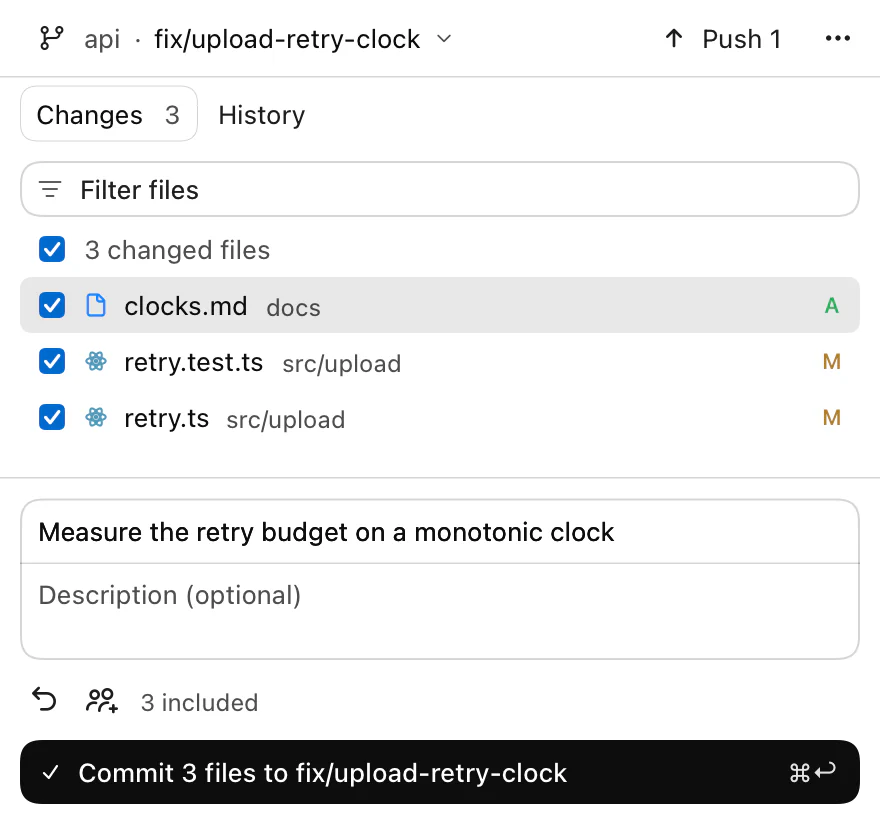
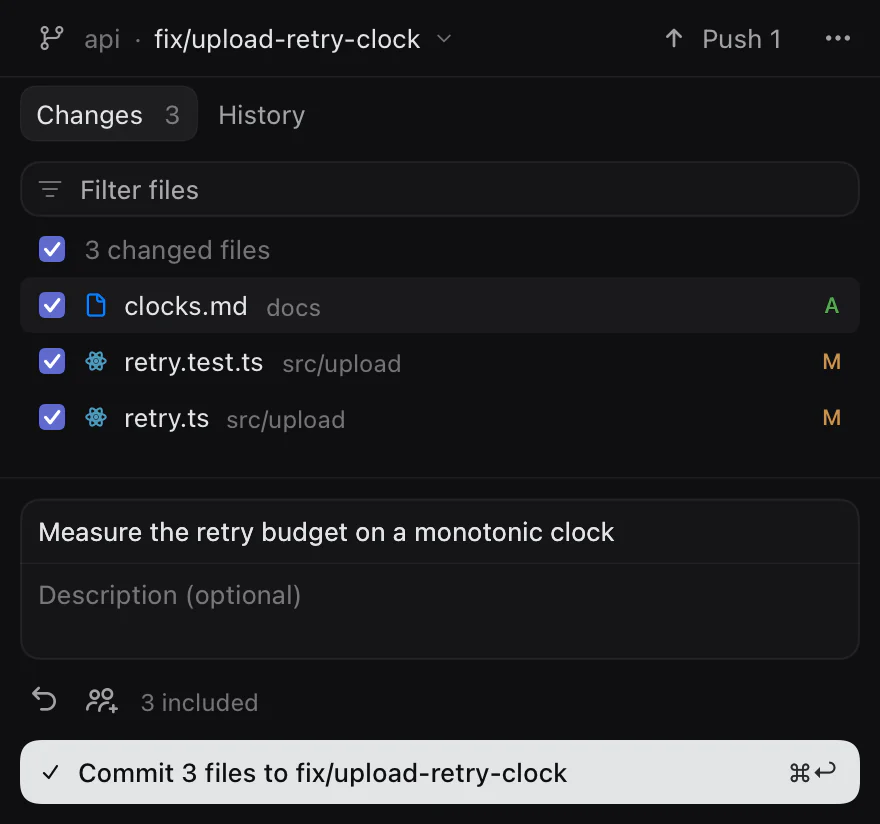
Review changes
The panel has two tabs, Changes and History. Its toolbar starts with the repository and branch (click to switch branches) and one sync button for the remote. Everything else is in More Git actions (…).
Changes lists every changed file. The checkbox beside a file says whether it goes into the next commit, and it is the real Git index: checking a file stages it, unchecking unstages it. A mixed checkbox means only part of the file is staged. Filter files narrows the list without changing what is included. The letters are the same as in Files.
Select a file to see its diff. In a narrow rail the diff opens over the list; Back to changes or Esc returns. In a wider rail they sit side by side, and Hide file list gives the diff the whole width, with buttons for the previous and next file.
- The file’s
…menu switches between Unified diff and Split diff. Split view needs room for two columns. - Images show before and after, with 2-up, Swipe and Onion comparisons.
- A partly staged file has an Included / Not included switch, so you can read each half.
Right-click a file for Include in Commit or Exclude from Commit, Discard Changes…, Reveal in Finder and, for an untracked file, Ignore This File and Ignore All .ext Files.
If the folder is not a Git repository, the panel says No Git repository and offers Initialize repository, which runs git init after you confirm.
Stage hunks and lines
Every hunk in a diff has a Stage hunk (or Unstage hunk) button. In the unified view you can also select individual lines in the gutter, then choose Stage, Unstage or Discard… in the bar that appears. The same actions are in the right-click menu: Stage Selected Lines, Stage Hunk and Discard Hunk….
Discarding asks first. An untracked file goes to the Trash; for a tracked file, Codz restores the working copy and keeps anything you already staged.
Commit
Write a summary and, if you want, a description, then click the commit button. It names what it will do, such as Commit 3 files to main. Source Control ▸ Commit (⌥⌘C) does the same.
- With a single file included, the summary’s placeholder suggests Update and the file name.
- A counter appears once the summary passes 50 characters and turns orange past 72.
- Add a co-author adds a
Co-authored-bytrailer for a name and email you type. - Amend the previous commit loads the last commit’s message into the box and the button becomes Amend last commit. If that commit is already on the remote, Codz warns that amending it needs a force push.
Commits run your repository’s hooks. After a commit, a notice offers Undo for a few seconds; it, or Source Control ▸ Undo Git Operation (⌥⌘Z), puts the files back as staged and the message back in the box.
Attribution
When an agent commits from a chat, Codz rewrites the message’s trailers: it removes the co-author lines agents add for themselves (Claude’s, Codex’s, Cursor’s, OpenCode’s) and “Generated with” lines, and adds Co-authored-by: Codz <agent@codz.com>. You stay the author.
Commits you make in the Git panel carry that trailer only if you turn on Commit attribution in Settings ▸ Git & worktrees. It is off by default.
Push, pull and fetch
The sync button in the toolbar offers the one remote action that makes sense now:
| Button | When |
|---|---|
| Add remote | The repository has no remote |
| Publish branch | The branch has not been pushed; Codz pushes it and sets its upstream |
| Pull N | The remote has N commits you do not |
| Push N | You have N commits the remote does not |
| Fetch | Otherwise |
Fetch, Pull and Push are also in the … menu and the Source Control menu. Pull only fast-forwards; if your branch and the remote have both moved, Codz stops rather than merging. Force Push… asks you to type the first seven characters of the commit it will replace.
Codz never asks for Git credentials. Push, pull and fetch use the login your git already has: run gh auth login for a GitHub HTTPS remote, or ssh-add your key for an SSH remote, once, in Terminal.
Git operations run one at a time; the rest wait in a queue. A running push, pull or fetch can be stopped with Cancel.
Branches
Click the branch in the toolbar to switch. The list has Filter branches, your Local and Remote branches, and how far each is ahead (↑N) or behind (↓N). If you have uncommitted changes, switching asks whether to Bring Changes or Stash Changes.
New branch… (⌘⇧B) suggests a name that starts with your branch prefix, codz/ unless you change it in Settings ▸ Git & worktrees. The new branch starts at the current commit and becomes the current branch.
Right-click a branch to Switch to it, Merge it into the current branch, Rebase the current branch onto it, Rename… or Delete… it. A remote branch offers Check Out as Local Branch. Deleting a branch whose commits are not merged anywhere asks you to type its name.
Conflicts
When a merge, rebase or cherry-pick stops on conflicts, the list shows the conflicted files and a banner shows the operation with Abort and Continue. For each file, choose Use Current, Use Incoming, or Edit in Files Panel and then Mark Resolved. Restore Markers writes the conflict markers back into the file. Committing is disabled until every conflict is resolved.
Stashes
More Git actions ▸ Stash Changes… stashes your changes, untracked files included. Stashed Changes lists them; right-click one to Apply, Pop or Drop… it.
History
History (⌥⌘2) lists the current branch’s commits by day. Filter commits searches their messages. Select a commit to see the files it changed and their diffs.
Right-click a commit to Check Out it, Create Branch from Here…, Create Tag…, Cherry-pick to Current Branch, Revert This Commit, Reset to This Commit (Soft, Mixed or Hard…), copy its SHA or subject, or view it on the remote’s website. Cherry-pick and revert need a clean working tree. A hard reset asks you to type the commit’s short hash.
Pull requests
Pull requests work for repositories with a github.com remote, through the GitHub CLI. Install it with brew install gh and sign in with gh auth login. Codz uses that login and never stores a GitHub token. Settings ▸ Git & worktrees shows whether gh is installed.
To open a pull request:
- Commit your work on a branch other than
main. - Push it with Publish branch or Push.
- Choose Create pull request from the chat header’s Environment and sources menu, or New… in More Git actions ▸ Pull Requests….
- Check the title, which starts as your latest commit’s subject, and click Create Draft.
Codz opens it as a draft into main (or, without a local main, your first local branch), with an empty description. Mark it ready and add a description on GitHub, or with Mark Ready for Review in Codz.
More Git actions ▸ Pull Requests… lists the repository’s open pull requests with their checks. Select one to read its description, checks, review threads, changed files and conversation. From there you can Comment (or Approve and Request Changes on someone else’s pull request), reply to and resolve threads, update the branch, merge it (Merge pull request, Squash and merge or Rebase and merge, now or with Merge When Ready), or close it. Everything you do there posts to GitHub as you.
When checks fail or threads are open, Add blockers to draft puts them into the chat’s composer so you can hand them to the agent.
Review notes
Leave notes on a diff without posting anything: hover a line and click the note button, or right-click it and choose Add Local Review Note…. More Git actions ▸ Review Notes… lists them, and Attach to Task Draft adds them all to the chat’s draft as one message for the agent. Nothing is sent until you send the draft.
Worktrees
A new chat can run in its own Git worktree instead of your project folder. On a new chat, the bar above the composer shows the project, where the task runs and the branch. Before you send the first message, click Local there and choose Isolated: “Create a separate Git worktree and branch for this task.”
When you send, Codz creates a worktree on a new branch named codz/task- and an id, starting from the project’s current commit, in a folder Codz manages. The agent, the rail’s panels and the terminal all work in that checkout, and your project folder is left alone. If the project is a subfolder of its repository, the chat works in the same subfolder of the worktree.
- The chat header shows a branch icon, with Project details · Running in an isolated checkout as its tooltip.
- Chat options adds Reveal isolated checkout in Finder, Copy isolated checkout path, Reveal source project in Finder and Copy isolated branch name.
- A chat’s location is chosen when it starts and cannot change afterwards.
The repository needs at least one commit; otherwise Codz says Create the repository’s first commit before starting an isolated task.
Run parallel attempts…, in Chat options, starts two to four attempts at the same task, each in its own worktree from the same commit. Suggested-task cards offer Start with worktree in the same way.
Remove a worktree
Deleting an isolated chat keeps its worktree and branch. They are listed under Settings ▸ History ▸ Retained checkouts, with Reveal and Remove…. Remove Clean Checkout deletes only the working folder, and only when it has no uncommitted changes. The branch always stays in your repository.
Settings
Settings ▸ Git & worktrees:
| Setting | Default | What it does |
|---|---|---|
| Branch prefix | codz/ | Starts the branch names the Git panel suggests |
| Tinted backgrounds | On | Shades added and removed lines in diffs |
| Syntax colouring | On | Colours code in diffs, as the file editor does |
| Commit attribution | Off | Adds the Codz trailer to commits you make in the Git panel |
| GitHub CLI | — | Shows whether gh is installed |
The branch prefix does not apply to worktree branches.
Keyboard shortcuts
These are in the Source Control menu and act on the Git panel while it is open.
| Action | Shortcut |
|---|---|
| Open the Git panel | ⌘⇧2 |
| Commit | ⌥⌘C |
| Amend last commit | ⌥⌘⇧C |
| Undo Git operation | ⌥⌘Z |
| Stage all / Unstage all | ⌥⌘A / ⌥⌘⇧A |
| Discard changes | ⌥⌘⌫ |
| Fetch | ⌥⌘E |
| Pull | ⌥⌘⇧U |
| Push | ⌥⌘P |
| New branch | ⌘⇧B |
| Show changes / Show history | ⌥⌘1 / ⌥⌘2 |
In the file list, ↑ and ↓ move, Space includes or excludes a file and ↩ shows its diff.
Troubleshooting
Git could not authenticate. Codz uses your existing Git login and never asks for one. Run gh auth login for an HTTPS GitHub remote, or ssh-add your key for an SSH remote, then try again.
The remote has commits you do not have locally. Pull first. Force pushing would drop the remote’s commits.
Another Git process is using this repository. Wait for it to finish, or remove .git/index.lock if nothing is running.
The GitHub CLI is not installed or not signed in. The Pull Requests sheet says which, with a Copy Command button for brew install gh or gh auth login.
Checkout not removed. The worktree has uncommitted changes. Commit, stash or copy them, then remove it again.