
Remote
Codz Remote
Follow and steer the agents on your Mac from iPhone and iPad. Approve actions, reply, start new chats and use a project’s tools.
Codz Remote is the Codz app for iPhone and iPad. It connects to Codz on your Mac, so you can follow the chats in the projects you approved, answer the actions agents are waiting on, reply and start new work while you are away from your desk.
Your Mac does the work. Agents keep running there with the logins you already have, and the phone sees only the projects you share with it. Security explains how that is enforced.
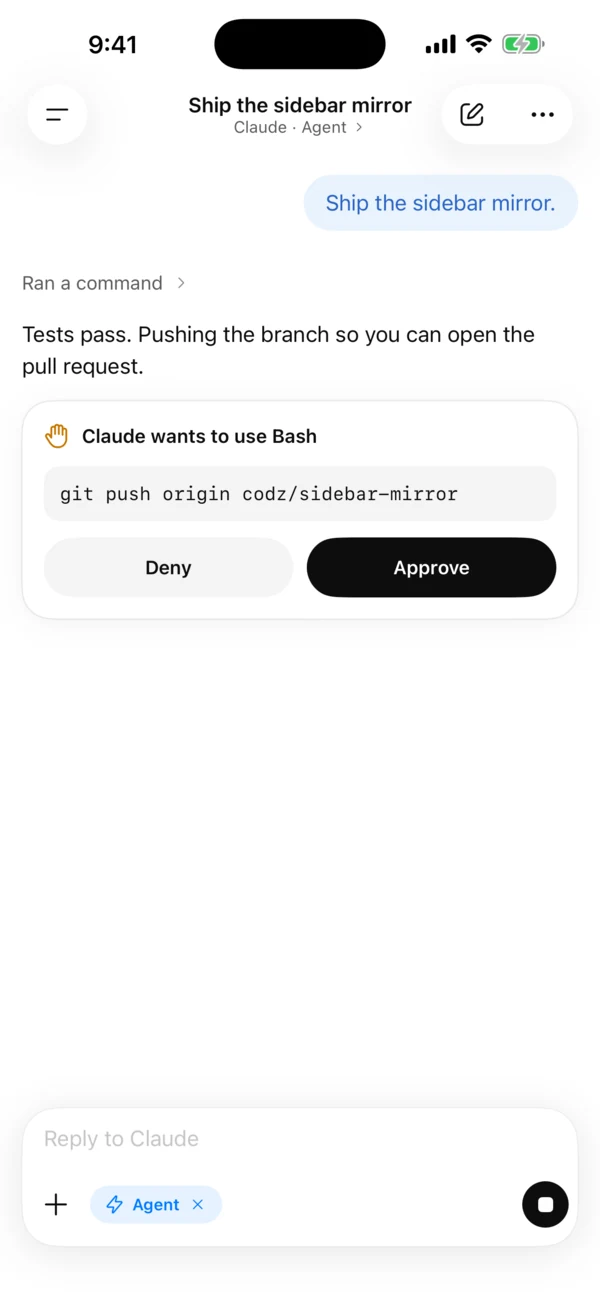
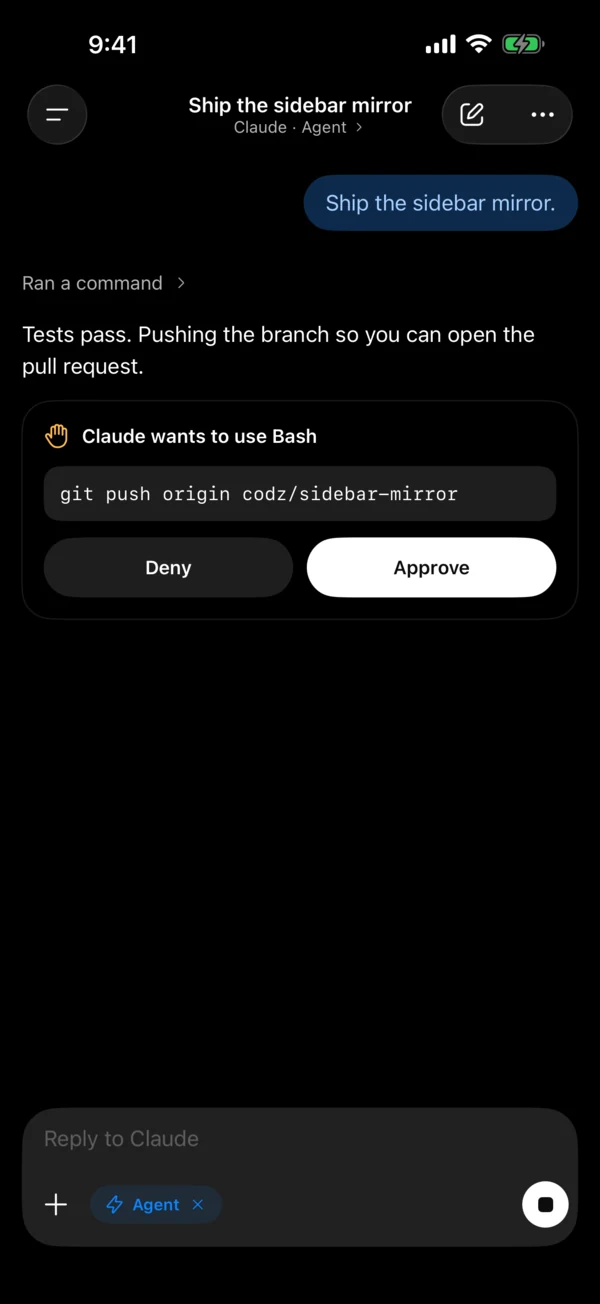
What you can do
- Follow chats. The sidebar lists the selected Mac’s chats in approved projects, pinned chats first, and each one updates while the agent works. Side chats stay on the Mac.
- Approve or deny actions. A waiting action shows as Claude wants to use Bash (or the agent and tool in question) with Deny and Approve. Claude Code, Codex, OpenRouter and DeepSeek take either answer from the phone. Cursor and OpenCode can’t approve single actions from the phone: deny there, or answer on your Mac.
- Read questions. When an agent asks you something, the question appears in the chat. Answer it on your Mac to continue.
- Reply and stop. Type in Reply to … to send a follow-up, or tap the stop button to interrupt the agent. The composer’s + menu switches the chat between Ask, Plan and Agent, and opens Chat details.
- Organize. Swipe a chat to pin, archive or delete it. Deleting removes the conversation and its checkpoints from your Mac; project files are not deleted.
- Start new work. Start a new chat, choose the agent at the top of the screen, then use + to pick the project, the mode, and where it runs: Project folder edits the approved folder directly, Isolated checkout works in a separate worktree and branch. A chat started from the phone begins in Ask unless you choose another mode.
- Check the Mac. Home shows the agents running, usage this period, top models and open ports.
Workspace tools
Workspace in the sidebar opens an approved project’s tools on the Mac:
| Tool | What it does from the phone |
|---|---|
| Git | Review, stage and ship |
| Terminal | Run commands on the Mac |
| Files | Browse and edit |
| Run | Build and launch |
| Browser | Preview local services |
| Computer | Capture the display |
| Ports | Inspect listeners |
A tool your Mac can’t offer right now stays in the list with the Mac’s reason. Mac controls stay on the Mac: System Settings and permission panes are shown as status only, and Codz never changes them remotely. The desktop versions are described under Git & worktrees, Terminal, Files, Run & previews, Browser and Computer use.
Anything that changes your Mac, such as sending a message, approving an action, committing or running a command, asks for Face ID, Touch ID or your passcode first. One confirmation covers that Mac for a minute while Codz Remote stays open. Reading, stopping and denying never ask.
Requirements
- A Mac running Codz, signed in to a Codz account with Pro. See Codz account.
- Allow connections turned on in Settings ▸ Connections on that Mac.
- At least one project approved for your phone.
- An iPhone or iPad with iOS 17 or later, signed in to the same Codz account.
Everything runs on the Mac, so Codz has to be open and the Mac awake for the phone to do more than show its last snapshot.
Set up
Install the app
Install Codz Remote on your iPhone or iPad. On the Home Screen it is called Codz. Open it and tap Continue with Codz to sign in with the account your Mac uses.
A Pro plan you pay for on codz.com already includes Remote. There is no second purchase in the app.
Connect your phone
- On your Mac, open Settings ▸ Connections and click Set up next to Control this Mac from your phone or other device.
- Read what a connected phone can do, then click Get started. If this Mac is not signed in to a Pro account yet, Codz asks you to sign in or upgrade first with Continue on codz.com.
- Under Allow devices to control this Mac?, click Allow. This turns on Allow connections.
- Codz shows a code. Open the Camera on your iPhone or iPad and point it at the code.
- Codz Remote opens and asks to connect to your Mac by name, for example Connect to “MacBook Pro”?. Tap Approve and confirm with Face ID or your passcode.
- Your Mac confirms the connection on its own and shows You’re connected. Set the options there, then click Done.
The code works once and expires after five minutes. While the window is open, Codz replaces an expired code with a new one, and Refresh makes a new one at any time. Copy pairing link copies the code as a link, and Larger enlarges it. Closing the window cancels the code.
You can also scan from inside the app: open Settings from the account row in the sidebar, tap Connect a Mac, and point the camera at the code. If you scan with the Camera before signing in to Codz Remote, it asks you to sign in first, then asks you to approve the connection.
Choose the projects your phone can use
Only folders you approve can be seen or controlled from the phone. It sees their chats, files and tools, and nothing else on the Mac.
- On your Mac, open Settings ▸ Connections.
- Under Projects your phone can use, click Add Project….
- Choose a folder and click Approve Project.
Chats whose folder is inside an approved folder appear on the phone. To take a project back, click Remove on its row and confirm with Remove Access. The same list is offered on the You’re connected screen after pairing.
Notifications
Codz Remote notifies you when something on your Mac needs you. Notifications carry no prompts, code or output, only one of these lines:
| Notification | When |
|---|---|
| An action needs your review. | An agent in an approved project is waiting on an approval |
| A task finished. | A chat finished its turn |
| A task failed. | A chat stopped with an error |
| A connected Mac went offline. | A Mac stopped checking in while it had work running |
Only chats in approved projects send notifications. Tap one to open that Mac and the chat. Turn each kind on or off in Codz Remote under Settings ▸ Notifications, which also links to the iOS notification settings.
Keep your Mac reachable
A Mac that is asleep, or where Codz has quit, shows as offline. The phone then shows the Mac’s last snapshot, read-only, and sends nothing: commands are not queued for later. Three settings in Settings ▸ Connections ▸ Other settings help:
| Setting | What it does |
|---|---|
| Keep this Mac awake | Prevents idle sleep while the Mac is plugged in and Remote is on. Off by default. |
| Open Codz at login | Opens Codz after the Mac restarts, so it stays reachable. Off by default. |
| Mac name | The name your phone shows. Only devices signed in to your Codz account see it. |
On battery, Keep this Mac awake does nothing, and closing the lid still puts the Mac to sleep unless you set up closed-lid mode under Settings ▸ General ▸ Keep awake. See Settings.
Manage connected devices
Settings ▸ Connections on the Mac lists Devices that can control this Mac. Each shows Authorized device and the date you authorized it.
- Revoke access, then Revoke Access to confirm, removes a device. It can no longer see or control this Mac, but content it already decrypted cannot be recalled.
- A device listed as Requires authorization finished pairing without the code on your screen, for example after you closed the setup window. Click Allow to connect it or Deny to refuse it.
- Turning off Allow connections stops Remote on this Mac.
On the phone, Settings ▸ Macs lists your connected Macs. Revoke removes one. Sign out unpairs the phone and erases its offline copy of your chats.
Troubleshooting
The phone says “Mac offline”. Open Codz on the Mac and check that Allow connections reads Online in Settings ▸ Connections. If it reads Codz Pro required, sign the Mac in to your Pro account in Settings ▸ Account.
A project is missing on the phone. The phone only lists approved folders and shows No shared projects until you add one. Approve the folder in Settings ▸ Connections.
“Pairing code unavailable: Remote is not enabled for this rollout cohort”. Codz Remote is opening to Pro accounts in stages, and yours isn’t included yet. Nothing on the Mac needs changing: the code appears once your account is.
“This code has expired.” Show a new code on your Mac and scan it again.
“… hasn’t confirmed yet.” Keep the code open on your Mac, or find the phone under Requires authorization in Settings ▸ Connections and click Allow.
“This Mac was issued a new remote identity, so paired devices must be paired again.” Connect each phone again with Set up.
“The Codz app on your Mac is older than this one and doesn’t support this yet.” Update Codz on your Mac from the download page.
More fixes are in Troubleshooting.