
Usage
Menu bar & widgets
Keep an eye on working agents, plan limits and local servers from the menu bar and three desktop widgets, without opening a window.
Codz lives in the menu bar as well as its window. The menu bar item says how many agents are working, and its popover shows who they are, how full your plans are, which local servers are running and, with Pro, what the day has cost. Three desktop widgets carry the same readings onto your desktop.
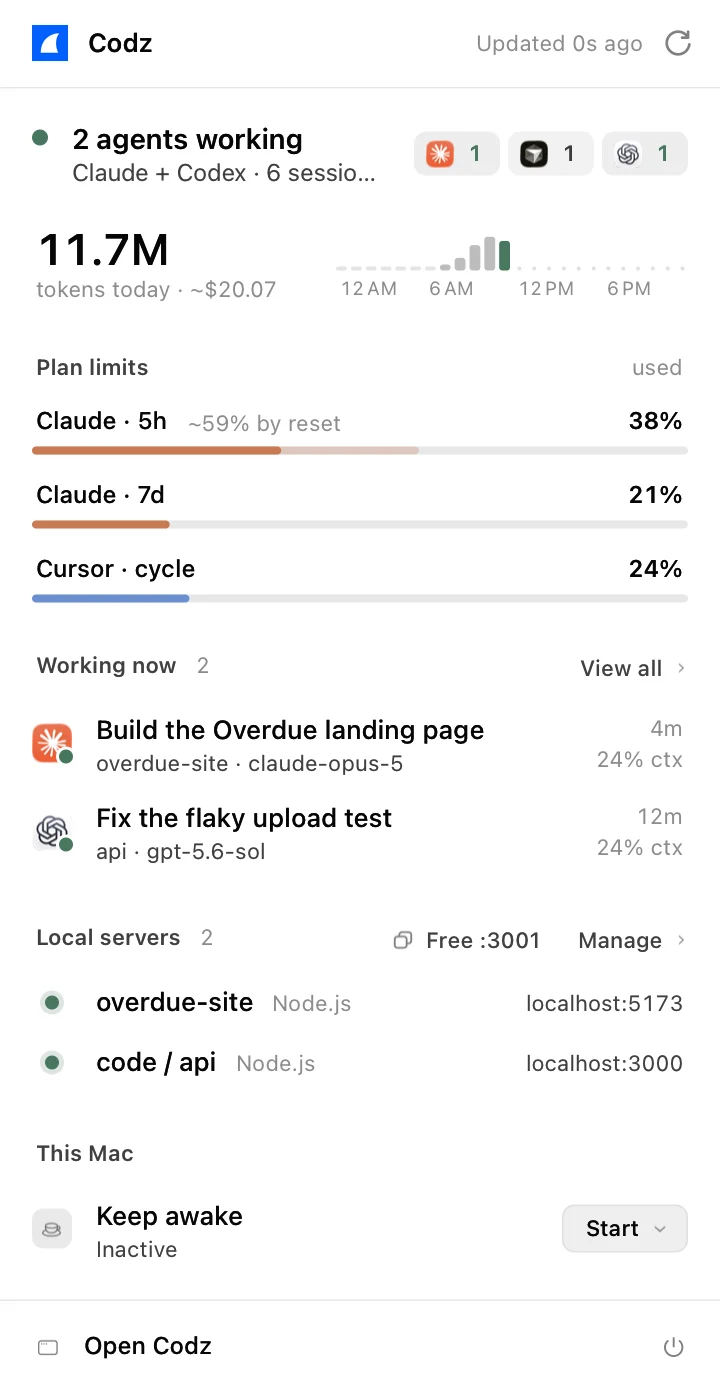
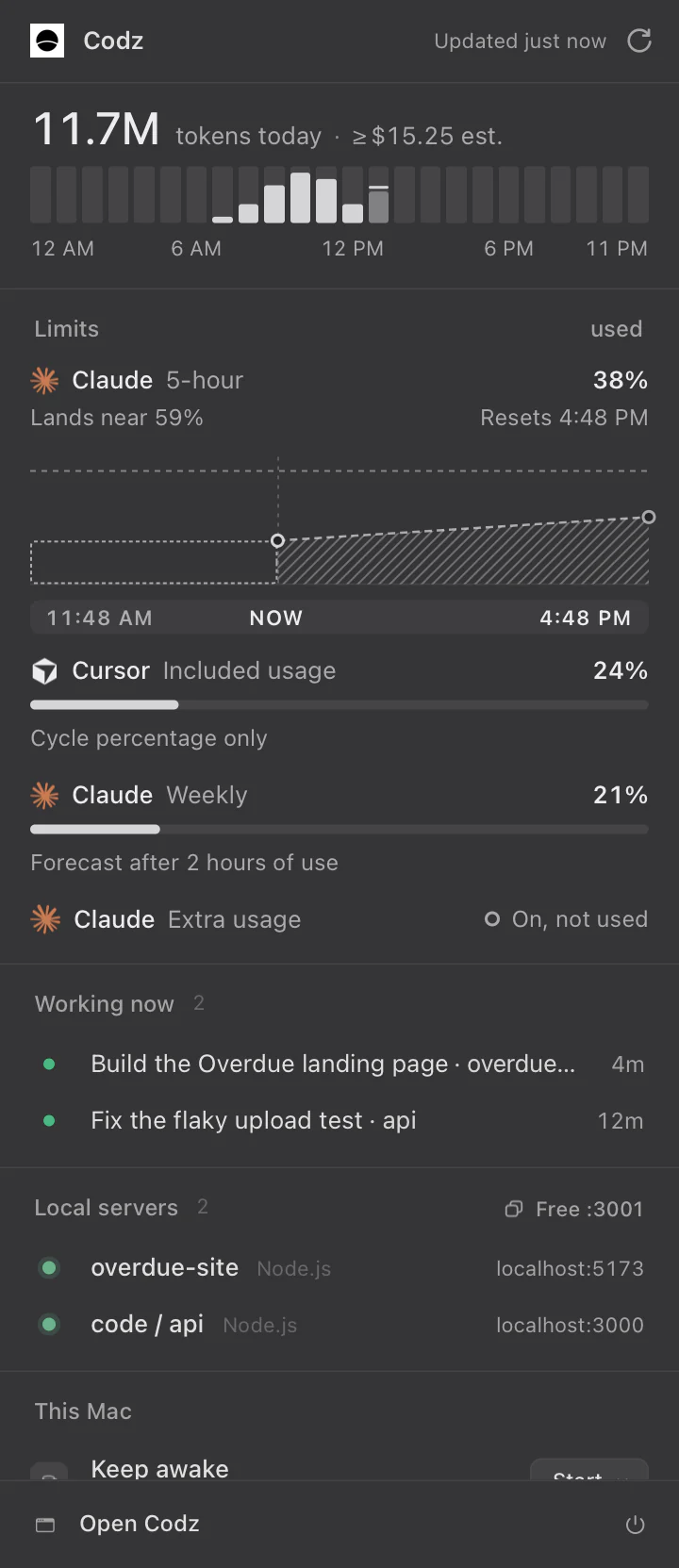
The menu bar item
The item is a bolt, filled while any agent is working, with the number of working agents beside it. It shows a cup instead while Codz is keeping the Mac awake and nothing is working. Click it to open the popover.
- Hide the number with Settings ▸ General ▸ Menu bar count. It is on by default.
- Turn off Settings ▸ General ▸ Show in Dock to keep Codz out of the Dock and the app switcher. The menu bar item stays.
The popover
From the top:
- The header says when the readings were last updated. The arrow refreshes them.
- Status: how many agents are working, or “All agents are quiet”, which providers they belong to and how many sessions are open. A chip for each provider with something working or open shows its count.
- The day’s usage, with Pro: the tokens so far, their cost, and a bar for each hour. Hover the number for where the cost comes from. It follows the day picked in the dashboard, so it can read “tokens yesterday”. Without Pro, this line reads “Tokens and cost are part of Codz Pro”, with Sign in or Upgrade.
- Plan limits: each Claude, Codex and Cursor window, how full it is, and where it’s heading or when it resets. See Plan limits.
- Working now: up to four working agents, each with its title, folder, model, how long it has been running and how full its context is. Click one, or View all, to open Agents.
- Local servers: up to three development servers. Click one to open it in your browser. Free :3001 copies
PORT=3001, the next free port, and Manage opens Ports. See Local ports. - This Mac: Keep awake, and Agent memory, which opens the Memory page. See Storage & memory.
- Open Codz brings up the main window, and the power button quits Codz.
If Codz hits an error collecting, the popover says so above Open Codz.
Keep awake
Keep awake stops your Mac from going to sleep: on its own while an agent is working, or for as long as you ask. Its line in the popover says what it is doing, such as Inactive or Awake · local task.
- Start keeps the Mac awake for 30 minutes, 1 hour, 2 hours or Indefinitely. Stop ends it early. A manual session also ends when Codz quits or the Mac sleeps.
- Settings ▸ General ▸ Prevent sleep while running keeps the Mac awake on its own while a local agent turn is active. It is on by default.
- With Codz Remote, Keep this Mac awake in Settings ▸ Connections keeps it awake while it is plugged in and remote access is on.
- Low-battery cutoff, in Settings ▸ General ▸ Keep awake, releases keep-awake at a battery level from 10% to 50%, 20% to start. Automatic keep-awake resumes on power; a manual session has to be started again.
Keep awake prevents idle sleep only, so keep the lid open. To keep local tasks and manual sessions running with the lid shut, turn on Keep running when the lid closes in Settings ▸ General ▸ Keep awake and set up the Codz helper it needs with Set up…. While it is active, system sleep is disabled, so turn it off before you choose Sleep. Before deleting Codz, click Remove beside Remove closed-lid helper to restore your previous sleep setting.
Codz also stops keeping the Mac awake when macOS reports thermal pressure or a critical battery, and says why in the popover.
Desktop widgets
Codz installs three widgets. To add one:
- Right-click the desktop, or open Notification Center, and choose Edit Widgets.
- Find Codz in the list.
- Drag the widget, in the size you want, onto your desktop or into Notification Center.
| Widget | Sizes | Shows | Plan |
|---|---|---|---|
| Tokens Today | Small, medium, large | Today’s billable tokens and cost, by provider | Pro |
| Plan Limits | Small, medium | Claude’s and Codex’s windows and Cursor’s included usage | Free |
| Active Agents | Small, medium | The agents working right now | Free |
Clicking a widget opens the page behind it: Usage for Tokens Today, Overview for Plan Limits and Agents for Active Agents.
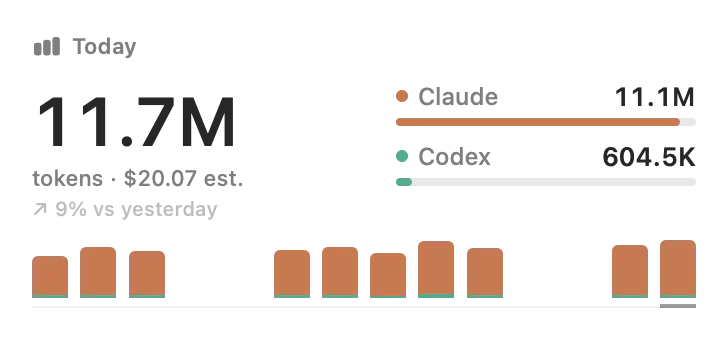
Tokens Today
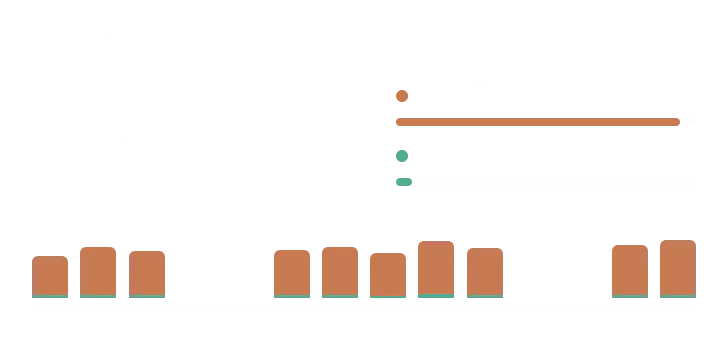
Today’s billable tokens in large type, with the cost when every provider that used tokens today can be priced. Every size shows the last 14 days as bars. The medium and large sizes add the change against yesterday and a row per provider; the large one also labels the days and the busiest one. Cursor’s row shows its context fill when Cursor’s account usage isn’t available, never a made-up total. See Usage analytics for where the numbers come from.
Without Pro, the widget says “Tokens and cost are part of Codz Pro.”
Plan Limits
The small size gives its whole face to the window most at risk: the one on pace to run out, or else the fullest. The medium size lists up to three windows, each with its bar and a line such as “Runs out in 2h 5m”, “~59% at reset” or “Resets in 4d 12h”. A lighter extension of a bar is where the window is heading at the current pace.
Until Codz has a reading, it says “No plan meters yet. Claude reports them while Claude Desktop runs; Codex on its next request.”
Active Agents
How many agents are working, and the first two (small) or three (medium) by name, with their project and how long they have been running. The medium size also counts them per provider. When nothing is running it says “Nothing running. Quiet is allowed.”
How widgets stay current
Widgets don’t read your agents’ files themselves. Codz writes a small snapshot for them as it collects, so they update while Codz is running.
- When the snapshot is more than 15 minutes old, a widget adds “as of” and the time it was taken. Active Agents says “Codz isn’t collecting right now.” instead of claiming nothing is running.
- While the dashboard is on another day, Codz stops updating the widgets until you come back to today, so a past day is never labelled Today.
- A widget that says “Open Codz to …” has no snapshot yet. Open Codz once.
Questions
The popover shows zeros, but my agents have been busy. macOS may be blocking Codz from reading the providers’ files. Turn Codz on in System Settings ▸ Privacy & Security ▸ Full Disk Access.
A widget shows an old time. Codz isn’t running, or the dashboard is on another day. Open Codz and go back to today.
The menu bar item is missing. The item is there only while Codz is running. Open Codz from your Applications folder.