
Workspace
Overview
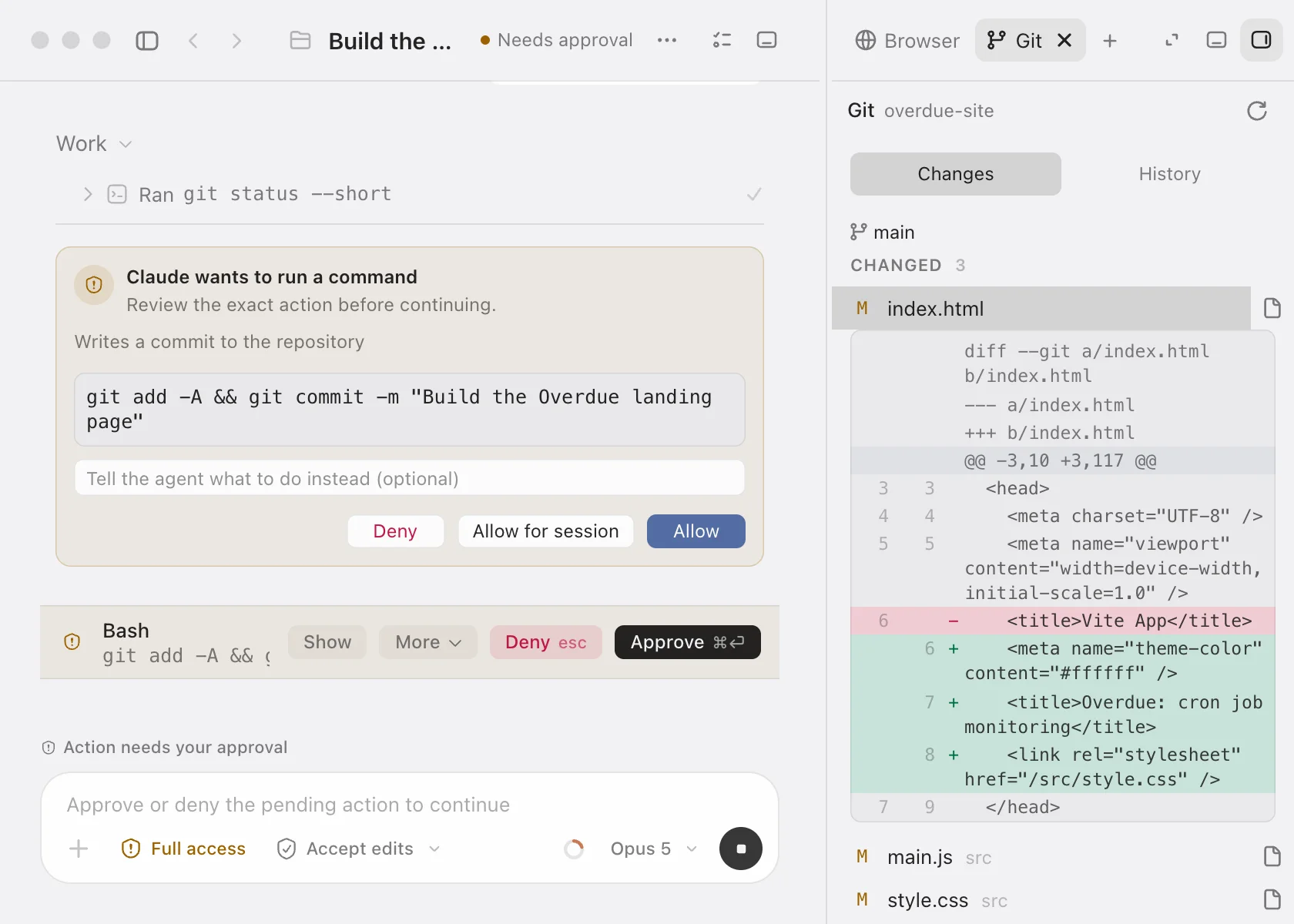
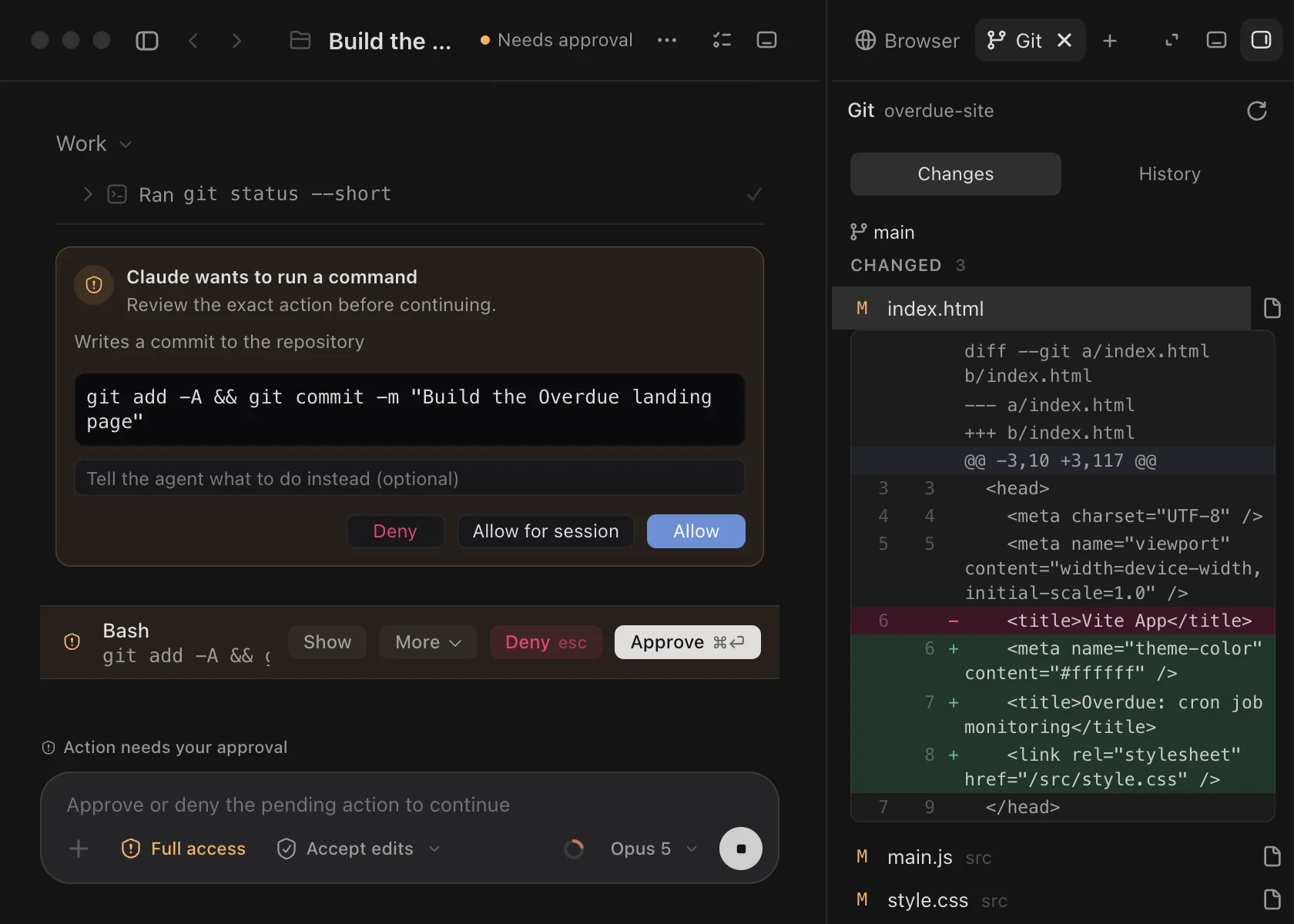
The rail beside every chat, with panels for activity, Git, a terminal, files, a browser, computer use and your running app.
The workspace is the rail to the right of a chat. Its panels show the folder the chat works in: what the agent did, the Git working tree, the project’s files, a shell, a browser, the screen an agent is using and the app you are building. You can check and steer the work without leaving the conversation.
The rail holds only the panels you open. Each one becomes a tab, and the tabs belong to the project folder, so every chat in that folder sees the same tabs, shells and runs.
Open a panel
- Click Open panel at the right of the chat header, or press ⌥⌘B. The rail opens on the tab you used last or, if there is none, on Open a panel, a list of every panel with its shortcut.
- Press a panel’s shortcut to open it directly. The same commands are in the Workspace menu and in the command palette.
- In a chat, type
/files,/terminal,/git,/browseror/computerin the composer. - Click a link in the transcript. A web address opens in the Browser panel, and a path to a file in the project opens the file in Files, at the line when the link names one.
- Click a row in the Activity panel to open the panel that did the work.
| Panel | Shortcut | What it holds |
|---|---|---|
| Activity | ⌘⇧1 | What the agent did in this chat, newest first |
| Git | ⌘⇧2 | Changes, diffs, commits, branches and pull requests |
| Terminal | ⌘⇧3 | A shell in the chat’s folder |
| Files | ⌘⇧4 | The project tree and an editor |
| Browser | ⌘⇧5 | Web pages, including your local dev server |
| Computer | ⌘⇧6 | The screen an agent sees while it uses your Mac |
| Run | ⌘⇧7 | App builds, device previews and dev servers |
Browser is listed while Browser tools is on and Computer while Computer use is on, both in Settings ▸ Browser & tools and both on by default. Run is listed for a folder with an app or a dev server Codz can run; iOS and Android apps also need Mobile Development, in the same settings page, which is on by default. Turning a switch off hides its tabs, and turning it back on brings them back.
The same list offers the chat’s own panels: Side chat (⌘⇧A), Background tasks (⌘⇧8) once the agent has started one, and Plan once it has written one. A turn’s Review button opens its changes in a Review tab. See Handoffs & side chats, Background tasks and Reviewing changes.
To close the rail, click Close panel at the right end of its tab row, press ⌥⌘B again, or choose Workspace ▸ Close Workspace (⌘⇧0).
Tabs
- A tab is named for what it holds: the page’s title (or New tab), the file’s name, the shell’s current folder, the app a Run tab builds (or, with several Run tabs, its device).
- Files you open in the Files panel get a tab each. See Files.
- Open a panel (
+) at the end of the row lists the panels with their shortcuts. With a Terminal tab already open it offers New terminal for a second shell, and with a Run tab open, Run on another device. - A dot on a tab means something behind it needs your eye: work still running, an approval waiting, or a side-chat answer you have not read.
- Right-click a tab for Close, Close other tabs and Close tabs to the right. A middle click also closes it. Closing the last tab closes the rail.
- When the tabs no longer fit, the widest ones narrow first, down to a minimum, and then the row scrolls. The selected tab always keeps its full name.
Size and layout
Drag the divider between the conversation and the rail to resize it; Codz remembers the width. Expand the panel, at the right end of the tab row, widens the panel over the conversation, and Restore the conversation puts it back.
When the window is too narrow for both, the rail covers the conversation instead of sitting beside it. At narrow widths the header’s workspace buttons also fold into one Open workspace button, whose menu lists the panels, the terminal drawer and Close workspace.
Header controls
The right end of the chat header holds the chat’s buttons, Project details, Chat options and Environment and sources, then, after a divider, the workspace’s: Terminal drawer (⌃`) and Open panel (⌥⌘B). While the rail is open, those last two sit at the right end of its tab row instead, beside Expand the panel.
Environment and sources is a summary of the chat’s working state:
- Changes, with the lines added and removed (or Clean). Click it to open the Git panel.
- Where the chat runs, Local or Isolated. This is chosen when a chat starts and cannot change afterwards.
- The current branch, with a submenu for switching to another.
- Commit or push, and Create pull request for a GitHub repository, which open the Git panel. See Git & worktrees.
- The files attached to the chat’s messages, with Add sources… to attach more.
Panels follow the folder
The rail belongs to the folder a chat works in, not to the chat. Start a dev server in the Terminal panel in one chat, switch to another chat in the same folder, and the same shell is there in the same tab. Close a tab in either chat and it closes in both. Plan, Background tasks, Review and image tabs are the exception: they stay with their own chat. A chat that runs in an isolated worktree works in its own checkout, so it has a rail of its own.
The panels keep their work per folder too: one Terminal shell and one Run preview for each folder, and the open files of each project. The Browser and Computer panels are one per window, so every folder’s Browser tab shows the same page.
Switching chats never stops what a panel is running. A dev server keeps serving, a shell keeps its job and the Browser keeps its page.
On a new chat, once you have picked a project, you can open Git, Files, Terminal, Run and Browser before sending the first message. The tabs you open there stay with the chat once you send.
Codz remembers each folder’s tabs, and the panel it was showing, across launches. The rail starts closed after a relaunch, so no shell starts until you open one.
Activity
The Activity panel lists what the agent did in this chat, newest first, in the transcript’s own words: “Ran …”, “Edited …”, “Opened …”. When the agent keeps a plan, the plan sits above the list.
- A row still at work shows a spinner. Failed, denied and waiting calls say so, as do requests Awaiting approval or Awaiting answer. Other rows show their time, or the lines added and removed for an edit.
- Where the list reaches another day it is labelled Today, Yesterday or the date.
- A long chat shows its newest 50 rows; Show more adds 50 more.
- Click a row to open the panel it belongs to. An edited file opens in Files, a page opens in the Browser, and a command is typed at the Terminal’s prompt without being run.
Until the agent does something, the panel says No activity yet.
Terminal drawer
The terminal drawer is a row of shells across the foot of the chat, under both the conversation and the rail. Open or close it with ⌃`, the Terminal drawer button, or Workspace ▸ Terminal Drawer.
Opening an empty drawer starts a shell in the chat’s folder, and New terminal (+) adds another. Each chat has its own drawer. Closing the drawer keeps its shells running; closing a shell’s tab ends it, and closing the last tab closes the drawer. Drag the drawer’s top edge to change its height; Codz remembers it. See Terminal for what the shells support.
Keyboard shortcuts
| Action | Shortcut |
|---|---|
| Open a panel | ⌘⇧1…7 |
| Background tasks | ⌘⇧8 |
| Side chat | ⌘⇧A |
| Open or close the rail | ⌥⌘B |
| Close the workspace | ⌘⇧0 |
| Terminal drawer | ⌃` |
The full list is in Keyboard shortcuts.