
Projects
Projects & sidebar
Group chats into projects, arrange the sidebar, and see at a glance which chats are working, finished or waiting on you.
The sidebar holds every chat on this Mac. Chats are listed under the project or folder they ran in, the ones you pin stay at the top, and each row says whether its agent is working, finished or waiting on you.
A project is a named set of folders with an icon and a colour. It decides where an agent starts, groups the chats that ran in its folders, and has its own issue tracker.
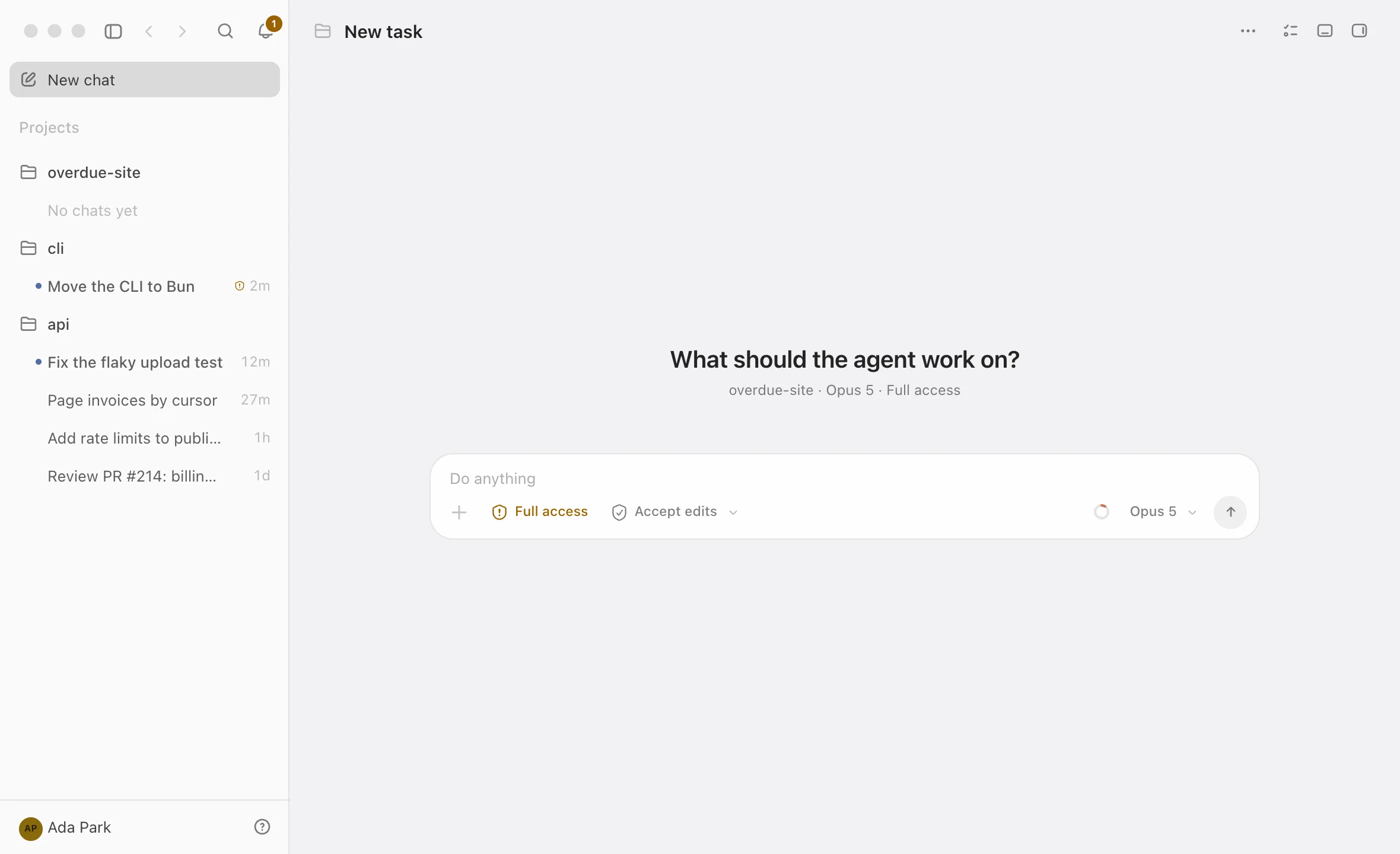
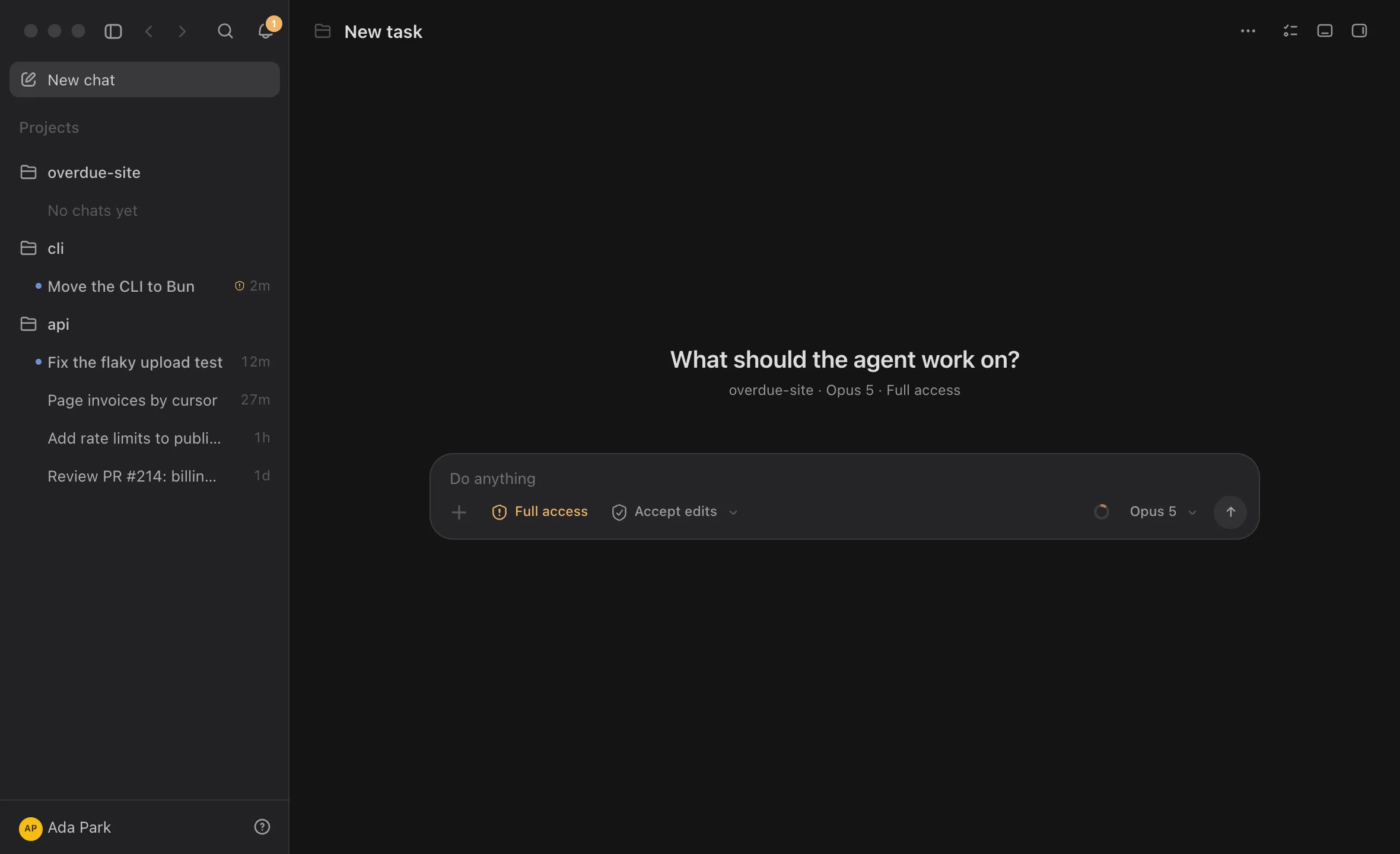
The sidebar at a glance
From top to bottom:
- The bell switches the list to the activity view. The magnifying glass beside it opens the command palette (⌘K).
- New chat starts a chat (⌘N).
- Pinned lists the chats you pinned. It appears once you pin one.
- Projects lists your projects and folders, each with its chats.
- Your name, at the bottom, opens the account menu: the dashboard pages, your plan limits, Settings, and Sign in to Codz or Log out. The question mark beside it opens Settings, Search and commands, Keyboard shortcuts and Help.
The button at the top of the window hides and shows the sidebar. Back (⌘[) and Forward (⌘]) step through the chats and pages you visited.
Projects
Create a project
- Choose File ▸ New Project… (⌘⇧N), or hover the Projects heading and click +.
- Pick a project type, Local or Shared, and click Next.
- Click Add folder, then Use an existing folder…, or Start from scratch… to make a new folder.
- Check the name. It follows the first folder until you type your own; click the icon beside it to choose an icon and a colour.
- Click Create project.
The composer offers the same thing: its project button lists New project…, your projects, Choose folder… and your recent folders. See Composer.
| Type | What it means |
|---|---|
| Local | Edit, run, and test files on this Mac |
| Shared | Local, and reachable from a paired iPhone or iPad |
A Shared project approves its folders for Codz Remote. If remote access is off, the sheet says so: the folders are approved now and become reachable once you turn remote access on. Removing a project never withdraws that approval; do that under Projects your phone can use in Settings ▸ Connections.
Folders and the primary folder
A project can hold several folders. Chats that ran in any of them, or in a folder inside one, are listed under the project.
The first folder you add is the Primary one: Codz starts agents in the primary folder and looks there for AGENTS.md. To change it, open the project, click … beside another folder and choose Make primary. A folder belongs to one project at a time; adding one that is already in another project shows which project has it.
Folders without a project
A chat that ran in a folder no project claims is listed under that folder’s name, with the same row as a project. Its menu has Create project, which opens the sheet with the folder already added. Pinning a folder from its hover card makes it a project too.
Change or remove a project
Hover a project row for its buttons: Issues, … (project options) and New chat in project. Hovering a little longer shows a card with the project’s path, its Git remote, how many chats it has and how many are unread or working, and buttons to pin it, edit it, reveal it in Finder or open the repository.
The … menu, also on a right-click, has:
- New chat and Issues.
- Pin project or Unpin project. Pinned projects lead the list.
- Reveal in Finder.
- Set up environment… or Project environment… (see below).
- Edit project, which reopens the sheet: rename it, change its icon, add or remove folders.
- Hide from sidebar.
- Mark all read and Archive chats, for every chat in the project.
- Remove project.
Removing a project only removes the label. Its chats and folders stay where they are, and the chats move back under their folder names.
Project environment
A project can keep three commands: Setup (install dependencies or prepare the checkout), Start (run the local development process) and Verify (prove the environment is ready with a bounded check). Choose Set up environment… from the project’s menu, type the commands and click Save Profile.
The commands are stored privately in Codz and never added to an agent’s prompt. Nothing runs until you click a command under Run explicitly and confirm a sheet that shows the exact command and folder. Commands run with /bin/zsh -f, so your shell startup files aren’t loaded, and token-, secret-, authorization- and cookie-shaped environment variables aren’t passed on. Run history keeps each run’s outcome, never its command text or output. A passing Verify marks the project Verified; it means only that the command last exited successfully.
Chats in the sidebar
What a row shows
| On the row | Meaning |
|---|---|
| A dot before a bolder title | Activity you haven’t opened yet |
| A turning ring | Working. It takes the place of the time. |
| An orange exclamation mark | Waiting for approval. The time turns orange and counts how long it has waited. |
| A red triangle | Ended with an error |
| An orange target | Goal blocked |
| A number | Prompts queued behind the running turn |
| A branch icon | The chat runs on a branch; hover it for the name |
| A stacked-layers icon | Runs in an isolated checkout |
5m, 2h, 3d | Time since the chat was last active |
Codz names a chat after your first prompt. Rename… changes it, and clearing the name brings the original back.
Chat actions
Right-click a chat for Open, Pin or Unpin, Rename…, Mark as read or Mark as unread, Reveal in Finder, Archive and Delete…. A chat in an isolated checkout offers Reveal isolated checkout and Reveal source project instead of Reveal in Finder.
- Select several chats with
⌘-click or⇧-click. A plain click opens a chat; the modifiers only select. Actions then apply to all of them (Archive 3 chats). - Archive hides a chat from the sidebar and stops it if it is working. Archived chats are in Settings ▸ History ▸ Archived chats, each with Restore and Delete….
- Delete… removes the conversation and its checkpoints after you confirm. Project files are not deleted, and a chat’s isolated checkout and branch are kept in Settings ▸ History until you remove them there.
- Chats imported from a provider’s own history show Hide instead of Archive and Delete…. Hiding removes the chat from Codz and leaves the provider’s history alone. See Imported history.
Arrange the list
- Drag a project to reorder the list. Pinned projects move among the pinned ones, the rest among the rest.
- Drag a chat within its project to reorder it, or into Pinned to pin it.
- Drag a chat onto another project to move it there. From then on its agent works in that project’s primary folder. Only a chat that is idle and not in an isolated checkout can move; otherwise Codz explains why, for example “Wait for the task to finish before moving it.”
- Sort chats from the … on the Projects heading: Priority (waiting on you, then unread, then working, then newest), Last updated, or Manual order, the default, which changes only when you drag.
- Collapse a heading or a project by clicking it. A collapsed project shows how many chats it holds.
- Show more appears under a long list. The sidebar shows five chats per project and five projects at first, and each click reveals ten more.
- Hide from sidebar takes a project or folder out of the list. Bring it back from Hidden folders in the … menu on the Projects heading. Its chats aren’t touched: pinned ones stay pinned, and the activity view still shows any that need you.
The activity view
The bell swaps the list for the chats that need you, then everything recent. Click it again, or choose View ▸ Toggle Activity View (⌥⌘U), to switch back.
The view opens with Priority: chats that are unread, active, or awaiting a response. After it come the chats of the last seven days under Today, Yesterday and the weekday’s name. When nothing is there, it says “Nothing needs attention”.
A chat is waiting on you when it:
- is waiting for you to approve an action or answer a question,
- ended with an error you haven’t opened,
- has a blocked goal, or
- has a scheduled run that needs you.
The bell’s badge counts the chats that need you and the ones with a finished turn you haven’t looked at. The number is orange when at least one chat needs you and blue when they are all ready to review. A blue dot instead of a number means agents are working and nothing is waiting. Hover the bell for the same thing in words, such as “View activity — 2 tasks need attention”.
The … on the first heading has Priority section, Pinned and Scheduled to choose which sections appear, Restore defaults, and Mark all as read. The filter button beside it, Clear read chats, hides chats you have already read until you leave the activity view.
Find a chat
- Click the magnifying glass or press ⌘K to search chats, files and actions in the command palette.
- Choose Chat ▸ Find Chat to filter the sidebar itself. Every word you type has to appear somewhere in a chat’s details, such as its title, project, folder, provider, branch or status. Press Esc to close the filter.
- Choose Chat ▸ Find Chat Including Archived (⌘⇧F) to include archived chats; matches appear under Archived.
Dashboard pages
The dashboard pages are in the account menu under your name, in the Navigate menu, and on these keys:
| Page | Key | What it shows |
|---|---|---|
| Overview | ⌘1 | Working agents, plan limits and, with Pro, the day’s usage |
| Agents | ⌘2 | Live sessions and measured runtime across every provider |
| Ports | ⌘3 | Local development servers |
| Usage | ⌘4 | Tokens and cost by day, provider and model (Pro) |
| Models | ⌘5 | Model-level usage and cost detail (Pro) |
| Chat | ⌘7 | Your open chat, or a new one |
| Profile | ⌘8 | Your token activity and streaks (Pro) |
| Storage | ⌘9 | What your agents keep on this Mac |
| Memory | ⌘0 | What your agents are holding in RAM |
| Issues | ⌘⇧I | The issue tracker you opened last, or the current chat’s project’s (Pro) |
The name at the top of the account menu opens Profile. Keyboard shortcuts lists every key.
Questions
Where did my project go? It may be hidden. Open the … on the Projects heading and look under Hidden folders. If the … isn’t there, hover the heading first.
Why can’t I move a chat to another project? Codz refuses while the chat or its side chat is working, when the chat runs in an isolated checkout (“An isolated task stays attached to the project that created its worktree.”), or when the destination folder no longer exists.
Where are archived chats? In Settings ▸ History. Chat ▸ Find Chat Including Archived finds them from the sidebar.
An agent started in the wrong folder. Agents start in the project’s primary folder. Choose Edit project, click … beside the right folder and choose Make primary.