
Agents
Models & loadout
Choose the models the composer offers, switch between them with a key, set effort and fast mode, and let Auto pick for you.
Your loadout is the short list of models you move between. Each pick is a whole choice, a provider and model with an effort level and fast mode on or off, and each of the first nine has its own shortcut. The first pick is what every new chat starts on.
The loadout works across providers: a Claude Code model, a Codex model and an OpenRouter model can sit side by side, and switching between them is one keystroke.
The model picker
Click the model chip at the right of the composer, type /model, or press ⌘/ in a chat (Chat ▸ Change Model…; ⌘⇧M works too).
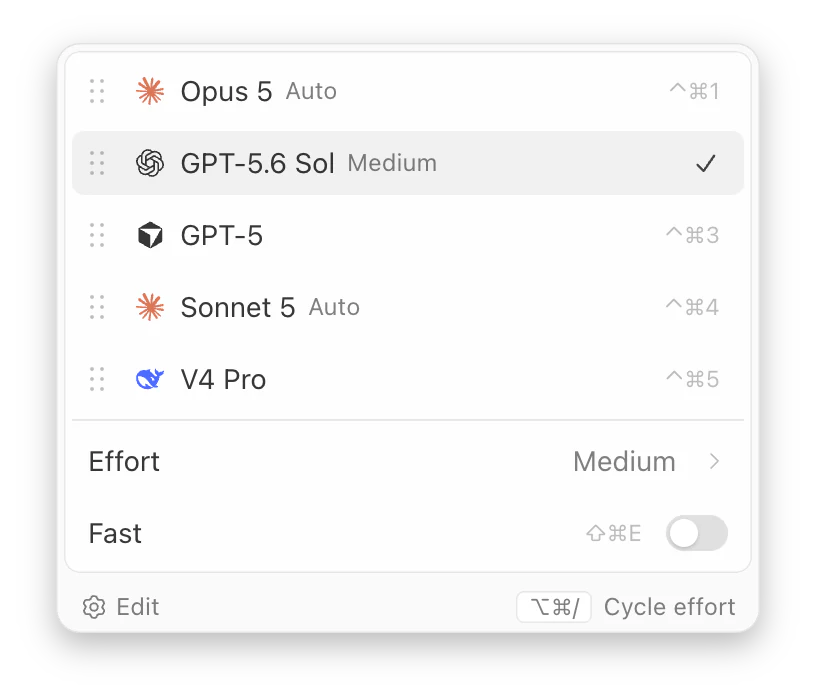
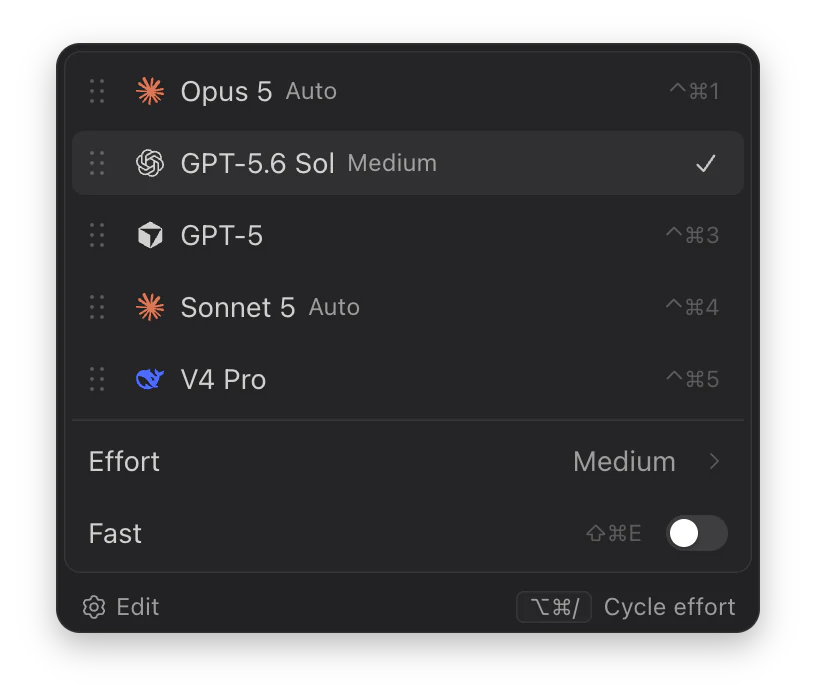
- Each row is one pick: the provider’s icon, the model, its effort, and a bolt when fast mode is on. The check marks what the chat runs; the other rows show their shortcuts.
- Click a row to switch the chat to it. Provider, model, effort and fast mode change together, and the picker closes.
- Drag a row by its handle to reorder the loadout. The top row becomes the default for new chats.
- Add models, shown while you have fewer than three picks, and Edit open Settings ▸ Default models.
- Use ↑ and ↓ to move, → to open a submenu, ↩ to choose and Esc to close.
A row that can’t be used right now is dimmed, and its tooltip says why: “Stop the current turn to change this.” while a turn is running and the pick is on another provider, “The claude CLI isn’t installed.”, “Connect OpenRouter in Settings first.”, or “Wait for this conversation to finish loading.”.
Choosing a pick on another provider moves the chat to that provider, which takes over the conversation from your next message. Handoffs & side chats explains what carries over.
Under the picks are the chat’s own settings. They change this chat, not the loadout:
- Auto, which lets Codz choose among your picks. See Auto.
- Effort, with a submenu of the model’s levels.
- Fast, the provider’s fast tier.
- Account, once the provider has a second login. See Providers & logins.
Effort and fast mode
Effort is how hard the model thinks. Each model lists the levels it takes, such as Low, Medium, High, Extra high and Max, with Auto first. Auto uses the effort set for that provider in Settings ▸ Models & providers (Effort for Claude, Reasoning effort for Codex), or the provider’s own default when none is set there. A model that takes no effort level shows Not supported.
Fast turns on the provider’s fast tier, and is offered only where the model has one. Elsewhere its switch is dimmed, and its tooltip says “Not supported for this model”.
⌥⌘/ steps the chat through its model’s levels, starting at Auto, and ⌘⇧E turns fast mode on and off. Neither does anything on a model without levels or a fast tier. If you change the effort away from a pick’s, no row in the picker is checked, because the chat no longer runs exactly that pick.
The model chip shows the model and its effort, with a bolt while fast mode is on. It names the provider in its tooltip, with where the model came from. When nothing has named a model yet, the chip says, for example, Claude default: the chat runs whatever the provider picks.
Keyboard shortcuts
| Action | Shortcut |
|---|---|
| Open the model picker in a chat | ⌘/ |
| Switch to pick 1 to 9 | ⌃⌘1…9 |
| Step through effort levels | ⌥⌘/ |
| Turn fast mode on or off | ⌘⇧E |
⌃⌘1…9, ⌥⌘/ and ⌘⇧E also set up a new chat before you send it; on a new chat, open the picker from the model chip. Chat ▸ Switch Model lists the picks by name, with their keys.
Edit the loadout
Open Settings ▸ Default models. Selected models holds your picks as cards, the first marked Default. All models has a column for each provider: Claude Code, Codex, Cursor, OpenCode and OpenRouter, and DeepSeek once it is set up.
- Click a model in a column to add it at the end, or drag it onto a card to replace that pick.
- Drag a card to reorder, or drag it off the row to remove it. The ✕ on a card also removes it; the default card has none, and the last card can’t be removed.
- Click a card to change its Provider, Model, Effort or Fast. Every card but the default also offers Remove from Loadout.
- Reset goes back to the models Codz picks for you.
A provider’s column lists its models, models you have used lately, and the default model from its settings. A column with many models, and OpenRouter’s always, has a Search models field. An empty OpenCode column fills in once OpenCode has run a model. A provider that isn’t ready offers a button such as Set up Claude Code, which opens Settings ▸ Models & providers.
Until you first edit it, the loadout is built from your settings: the default model of your default provider, then Claude Code’s and Codex’s when their CLIs are installed. There is no limit on its length; only the first nine picks get shortcuts. Settings ▸ Agent & composer ▸ Default model names the first pick, with Edit loadout.
Auto
Auto lets Codz choose which of your picks answers each message. A model called Jev, reached through your OpenRouter account, reads the message and picks one. Each choice costs a fraction of a cent, billed to that account.
To use it:
- Connect OpenRouter in Settings ▸ Models & providers (see Providers & logins).
- Turn on Settings ▸ Agent & composer ▸ Pick the model automatically.
New chats then start on Auto, and the Auto switch in the model picker turns it on or off for each chat. Until both steps are done the switch is dimmed, with Off in Settings or Needs OpenRouter beside it.
- Auto chooses only among your loadout picks. When only one of them can run, it asks nothing.
- To decide, Codz sends OpenRouter your message, with any code you added to it, a line or two from each of the chat’s last few turns, the chat’s mode and current model, the names of attached files, and whether an image is attached.
- When Auto changes the model, a line above the reply names the pick and how confident Auto was: “Auto picked” and the model. It needs to be more sure to move a chat to another provider in the middle of a task.
- When Auto keeps the model, nothing is added to the transcript. The model chip’s tooltip says what happened, such as “Auto kept this model” or “Auto could not reach Jev, so this chat stayed on its model”.
- If Jev can’t be reached or doesn’t answer in time, the message runs on the chat’s current model.
- While Auto decides, the send button dims and pulses, and its tooltip says “Choosing a model”. A message sent meanwhile waits its turn.
- Choosing a model yourself turns Auto off for that chat. While Auto is on, no row in the picker is checked, and the chip names the model that ran last, with Auto beside the effort.
When a plan runs out
When Claude Code or Codex refuses a turn because your plan’s usage limit is spent, the turn stops with the provider’s notice at that point in the transcript. The composer says You’re out of Claude usage (or Selected model is out of usage when only that model is spent), with when it resets and, when the provider names a page, a button such as Add Credits, Upgrade or Raise Limit. The banner goes once the limit resets or you send another message.
With Settings ▸ Agent & composer ▸ Continue on another provider on, as it is by default, Codz doesn’t stop there. It moves the chat to the next ready model in your loadout and asks it to pick up where the previous agent stopped. When a usage limit hits explains the order Codz tries, and Plan limits covers the meters behind the limits.
Troubleshooting
A pick is dimmed. Its tooltip gives the reason. Stop the running turn before switching provider, set up the provider (see Providers & logins), or wait for the chat to finish loading.
A ⌃⌘1…9 shortcut does nothing. Your loadout has no pick in that slot, or the pick can’t run right now.
Effort says “Not supported”, or Fast is dimmed. The model has no effort levels, or no fast tier. Pick another model, or leave it as it is.
Auto is dimmed. Turn on Pick the model automatically and connect OpenRouter, as above.
Settings shows “Unknown model” under OpenRouter. The Default model id isn’t among the models OpenRouter lists as able to use tools, and chats on it will fail until you correct it.
A Codex turn says “Codex needs an update”. The model needs a newer Codex CLI. Click Update Codex…, then send the message again.